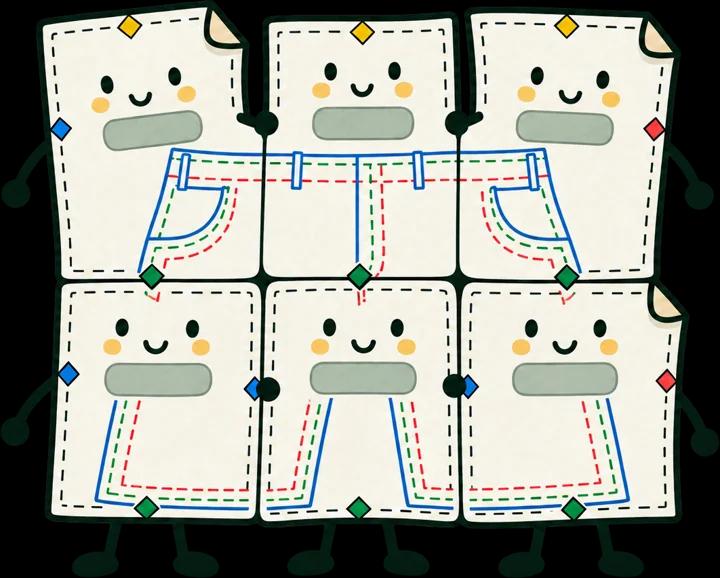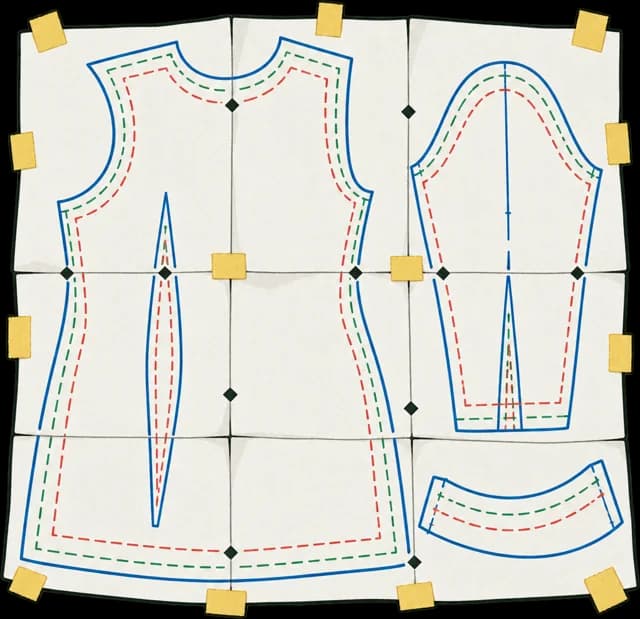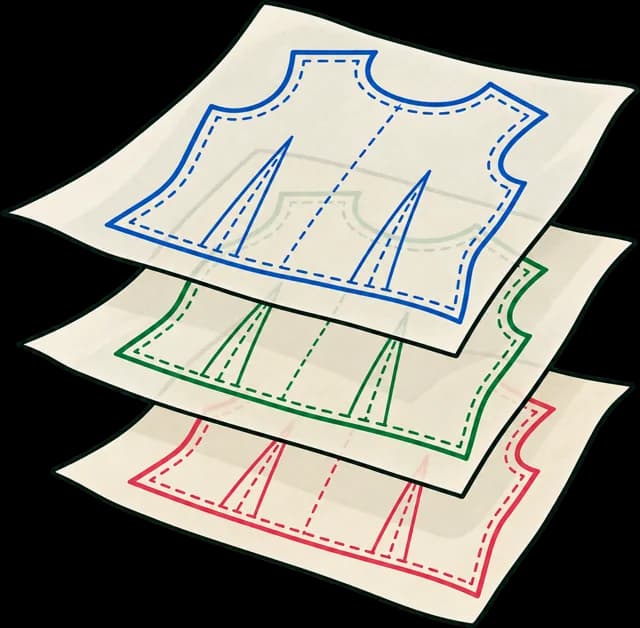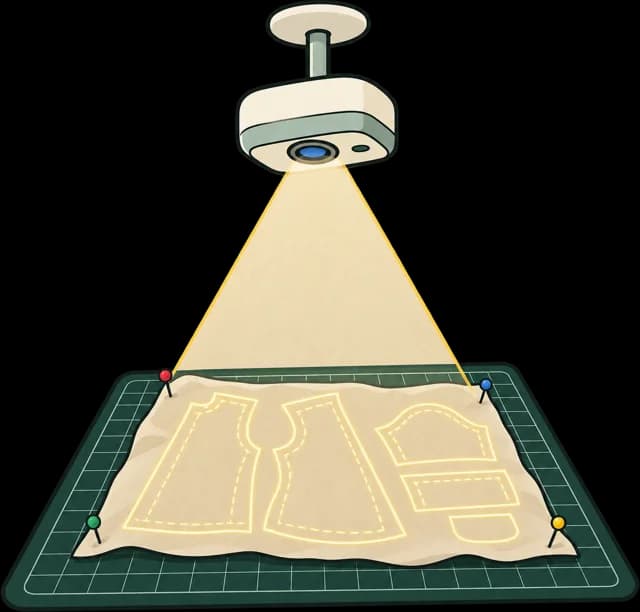
Pattern CAD is made for drafting and for cutting tables. It doesn't make the files a home sewist buys: tiled A4 and Letter, copyshop sheets and a projector file, with a layer per size. Sewpress makes those from the DXF your CAD program already exports. Here's what to export from Seamly2D, Valentina and CLO 3D, and the three things to get right on the way.
What Sewpress reads
A DXF saved as text: plain, AAMA or ASTM, which is what pattern CAD usually exports. A binary DXF or an AutoCAD DWG is a different format, and so are CAD's own files (.sm2d, .val, .zprj), so export rather than upload those.
Sewpress reads the DXF after you upload it, and shows you what it found before anything is built: the sizes, the layers and the test square.
1. A test square, drawn as a piece
Every Sewpress file is checked against a square of known size, and a DXF needs one too. Draw a square with sides of exactly 100 mm (10 cm) and make it a pattern piece of its own, with no seam allowance, so it goes out with the other pieces.
You don't need to put it on a layer of its own. Seamly2D and Valentina put every piece on the same few DXF layers anyway. Sewpress finds a 100 mm square anywhere in the file and asks you to confirm it: press Use it beside the square it found. If your program does let you name layers, a layer called test square works too.
2. The units
A DXF is a list of bare numbers. Some files say what they're in; Seamly2D and Valentina don't. A wrong guess between mm and inches makes every piece 25.4 times off, so Sewpress won't guess.
If the file doesn't say, the mapping screen asks: mm, cm or inches. It starts on the one the file looks like. Then the square has to measure 100 mm before a build can go ahead, so a wrong choice can't reach your files.
3. Every size in the file
Sewpress puts each size on its own layer, so sewists can hide the sizes they don't need. It finds them in one of three ways:
- A DXF layer per size, named
S,M,Size 12and so on. - AAMA or ASTM pieces that say their size, such as
Size: 12. Every piece of one size goes on that size's layer. - One size only: the whole file becomes one layer.
What Sewpress doesn't do is grade. An AAMA file with its grading in a separate rule file (.rul) comes out in the base size only. Export the sizes themselves, then check the layer list shows every one before you build.
Seamly2D
Make your pieces, add the square as a piece, and create a layout. Then choose File → Layout → Export and pick a DXF format, flat or AAMA. If there's a Binary form box, leave it unticked, so the DXF is saved as text.
Seamly2D drafts from one set of measurements at a time, so each export is one size. That's fine for a one-size pattern. For several sizes in one file, its own developers suggest exporting each size as SVG and combining them in a vector app. In Inkscape, put each size on its own layer and the square on a layer called _test, then save as Inkscape SVG and upload that. The layered master guide covers that setup.
Valentina
Valentina exports a layout to DXF in flat, AAMA and ASTM formats, from R10 to 2013, with an option for binary that you should leave off. As in Seamly2D, the export is the size your measurements are set to, so a multi-size pattern goes out one size at a time. The same Inkscape route works for several sizes.
CLO 3D
Draw the square with the Rectangle tool in the 2D window. Click once in the 2D window rather than dragging, and type the width and height: 100 mm each.
Then choose File → Export → DXF. CLO offers DXF-AAMA, DXF-ASTM and Standard DXF, and Sewpress reads all three. CLO exports one size group per file. If it asks where the grading goes, don't send it to a separate rule file. After you upload, check the layer list: one size where you expected several means only the base size came through.
What you get
From one upload: tiled A4 and US Letter with labels and alignment marks, A0 and 36 × 48 in copyshop sheets and a projector file, every size on its own layer in each. Lines come out thin and black, the way a plot draws them. Every file is measured again before you see it.
Tester files are free and marked TEST COPY, so you can check a real pattern of yours from start to finish before you pay for anything. A clean set to sell uses a credit.
Your next step
Export one pattern you know well, with its test square, and build free tester files. Print a page at 100% and hold the square to a ruler. If anything stops the upload, the screen says why and what to change.
Sources
Checked on 7 November 2026; CLO's pages are summarised from its help centre's own article titles and excerpts. Menus move between versions, so check your own program's.
- Seamly2D: Quick Start guide, for File → Layout → Export, its DXF versions and the binary form box.
- Seamly2D: How to export multi-size pattern?, where its developers say each size is exported on its own (November 2024).
- Valentina: command-line manual, for its flat, AAMA and ASTM DXF formats and the binary option.
- CLO: 2D Pattern DXF Import/Export and Rectangle.
Questions
Why does Sewpress ask for my DXF's units?
A DXF is a list of numbers, and Seamly2D and Valentina don't say whether they're mm, cm or inches. The wrong guess is 25.4 times off, so you choose, and the test square has to measure true before anything is built.
Can I upload my .sm2d, .val or .zprj file?
No. Sewpress reads what CAD exports, not its own files: a DXF saved as text, a layered PDF or an SVG.
My Seamly2D pattern has several sizes. What do I upload?
Seamly2D exports one size per file, and Sewpress reads one file. Upload that DXF for one size. For several, export each size as SVG, put each on its own layer in one Inkscape file with the square on a layer called _test, and upload that.
Does Sewpress read a graded AAMA file with a .rul?
It reads the DXF and draws the base size. It doesn't apply the rule file, so export the sizes themselves.